Git
Git
Before we start, here’s a link to one of the best free books on Git: Pro Git Book
What is Version Control?
When working on a project, we often need to keep track of changes made to the code. Version control systems help us track and reconcile changes across different versions of our codebase.
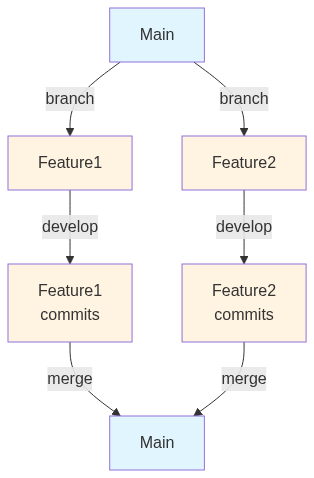
Think of your codebase as a tree. Each change you make can create a new branch in the tree. It’s up to you to decide if your changes are good enough to become part of the main branch. But why a tree? Because we have a single source of truth (the main branch) based on which we can reconcile all changes.
Imagine the source of truth is a single branch called main. When you want to work on a new feature, you create a branch from main, make your changes in that branch, and once you’re done, you can merge the branch back into main.
This approach allows us to:
- Work on multiple features in parallel
- Enable multiple people to work on the same codebase simultaneously
- Revert to previous stable states if something goes wrong
Getting Started
First, download Git from here and install it.
In this guide, we’ll cover:
- Setting up Git credentials
- Creating a new repository
- Understanding the staging area and making commits
- Working with branches
- Merging branches
- Working with remote repositories
- Common Git commands and workflows
1. Setting Up Git Credentials
Before you start using Git, configure your name and email. These will be associated with all your commits.
1git config --global user.name "Your Name"
2git config --global user.email "your.email@example.com"
You can verify your configuration with:
1git config --list2. Creating a New Repository
Navigate to the directory where you want to create the repository. You can either:
- Initialize an existing directory as a Git repository
- Create a new directory and then initialize it
1# Option 1: Initialize current directory
2git init
3
4# Option 2: Create new directory and initialize
5mkdir my-project
6cd my-project
7git init
3. Understanding the Staging Area and Making Commits
Git uses a three-stage workflow:
- Working Directory: Your files as they exist on disk
- Staging Area: Files you’ve marked to be included in the next commit
- Repository: Committed snapshots of your project
Let’s create a file and commit it:
1# Create a new file
2echo "Hello, World!" > hello.txt
3
4# Stage the file (add it to the staging area)
5git add hello.txt
6
7# Commit the changes with a descriptive message
8git commit -m "Add hello.txt file"
Key Commands:
git status- See which files are modified, staged, or untrackedgit add <file>- Stage a specific filegit add .- Stage all changes in the current directorygit commit -m "message"- Commit staged changes with a message
4. Working with Branches
Branches allow you to work on features, experiments, or fixes without affecting the main codebase.
Create and switch to a new branch:
1git checkout -b feature1This is equivalent to:
1git branch feature1      # Create the branch
2git checkout feature1    # Switch to the branch
Modern alternative (Git 2.23+):
1git switch -c feature1 # Create and switchMake changes in the new branch:
1echo "Hello, World! in feature1" > hello.txtView all branches:
1git branch                # List local branches
2git branch -a            # List all branches (local and remote)
5. Committing Changes to a Branch
1git add hello.txt
2git commit -m "Update hello.txt in feature1 branch"
6. Merging Branches
Once your feature is complete, merge it back into main:
1# Switch back to main branch
2git checkout main
3
4# Merge feature1 into main
5git merge feature1
Note: If there are no conflicts, Git will automatically create a merge commit. If conflicts occur, you’ll need to resolve them manually.
7. Working with Remote Repositories
Remote repositories allow you to collaborate with others and back up your code.
Add a remote repository:
First, create a new repository on a platform like GitHub, GitLab, or Bitbucket. Then copy the repository URL and add it as a remote:
1git remote add origin <remote-repository-URL>View remote repositories:
1git remote -v # List all remotes with URLsUpdate remote URL (if needed):
1git remote set-url origin <new-URL>8. Pushing Changes to Remote
Push your local commits to the remote repository:
1git push -u origin mainThe -u flag sets up tracking, so future pushes can be done with just git push.
Push to a specific branch:
1git push origin feature19. Pulling Changes from Remote
git pull fetches changes from the remote and merges them into your current branch:
1git pull origin mainNote: git pull is equivalent to git fetch followed by git merge.
10. Fetching Changes from Remote
git fetch downloads changes from the remote without merging them:
1git fetch originThis is useful when you want to see what changes exist on the remote before merging them. After fetching, you can review changes with:
1git log origin/main..main    # See commits on remote
2git diff origin/main          # See differences
Additional Useful Commands
Viewing History and Changes
1git log                      # View commit history
2git log --oneline            # Compact one-line view
3git log --graph --oneline    # Visual branch history
4git diff                     # See unstaged changes
5git diff --staged            # See staged changes
6git show <commit-hash>       # Show details of a specific commit
Undoing Changes
1git restore <file>           # Discard changes in working directory
2git restore --staged <file>  # Unstage a file
3git reset HEAD~1             # Undo last commit (keeps changes)
4git reset --hard HEAD~1      # Undo last commit (discards changes) - use with caution!
Working with .gitignore
Create a .gitignore file to exclude files from version control:
1# Example .gitignore
2node_modules/
3*.log
4.env
5.DS_Store
Cloning a Repository
To get a copy of an existing repository:
1git clone <repository-URL>This creates a new directory with the repository name and downloads all files and history.
Common Workflows
Typical workflow:
git pull- Get latest changesgit checkout -b feature-name- Create feature branch- Make changes and
git addfiles git commit -m "message"- Commit changesgit push origin feature-name- Push to remote- Create pull/merge request on platform
- After review, merge to main
git checkout main && git pull- Update local main
Tips and Best Practices
- Write clear commit messages: Describe what and why, not how
- Commit often: Small, logical commits are easier to review and revert
- Pull before push: Always pull latest changes before pushing
- Use branches: Keep main stable, work on features in branches
- Review before merging: Check your changes with
git diffandgit status